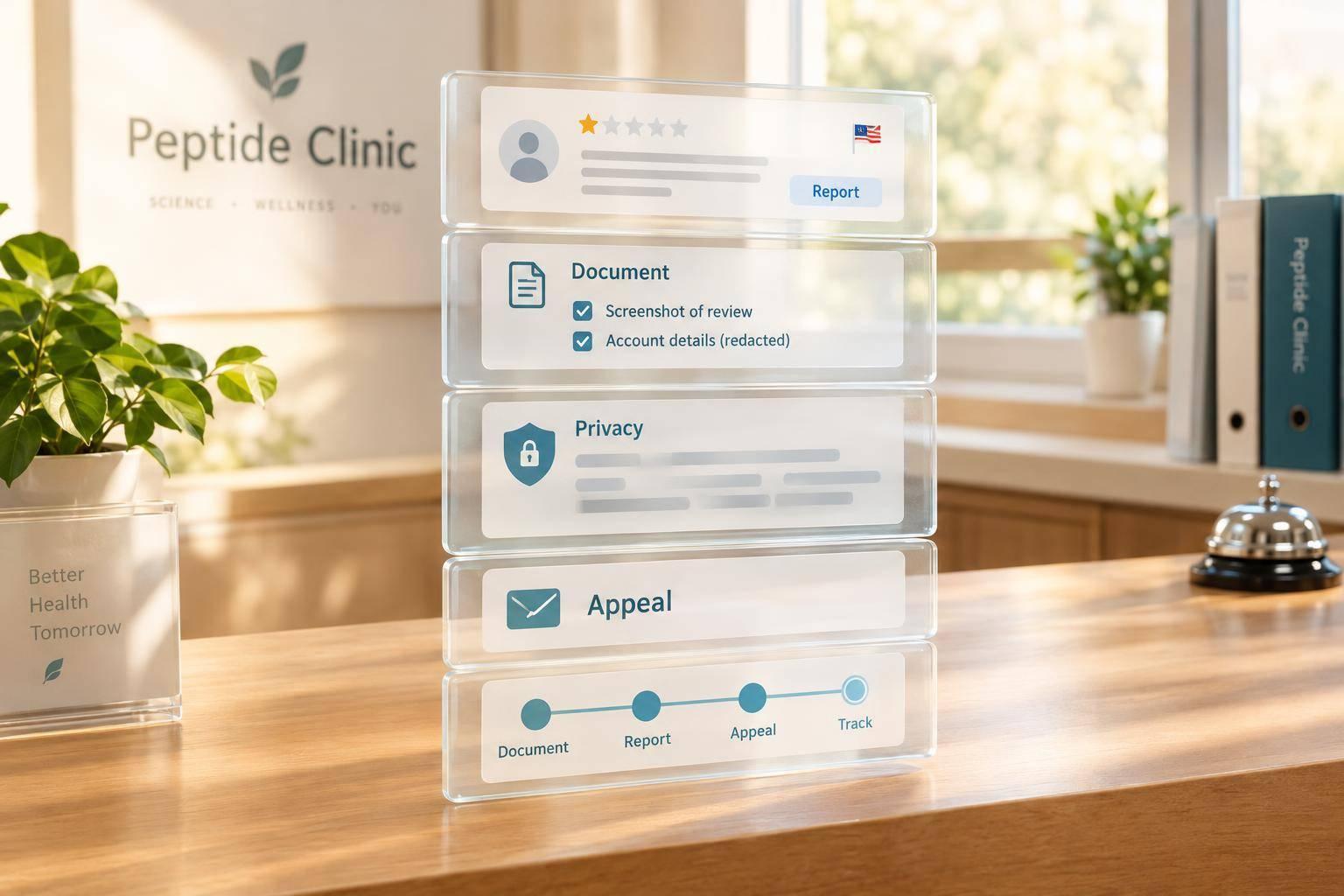
I’d dispute a suspected fake Google review by reporting a specific policy violation - not just a low rating. Save the review link and screenshots, report it through Google Business Profile, and track the decision in Google’s Reviews Management Tool. If eligible, submit one appeal. Google decides whether to remove it.
My checklist for your clinic, supported by clinical resources for peptide-prescribing professionals:
- Check the facts: An unfamiliar name or missing record match doesn’t prove a review is fake.
- Protect privacy: Never submit clinical records or confirm patient status. Keep public replies brief and neutral.
- Track the case: Assign an owner and backup, keep a restricted-access log, and review open cases weekly.
- Set staff rules: Escalate threats or privacy concerns, learn from valid complaints, deepen your understanding of peptide therapy, and request honest reviews without incentives or screening for happy patients.
<u>No report or appeal guarantees removal.</u> The goal is a clear policy-based report that protects patient privacy.
How Peptide Clinics Dispute Fake Google Reviews
How to Remove Bad Google Reviews: Exact Steps to Get Negative Reviews Removed
sbb-itb-7164bd9
Step 1: Check Google's Review Policies
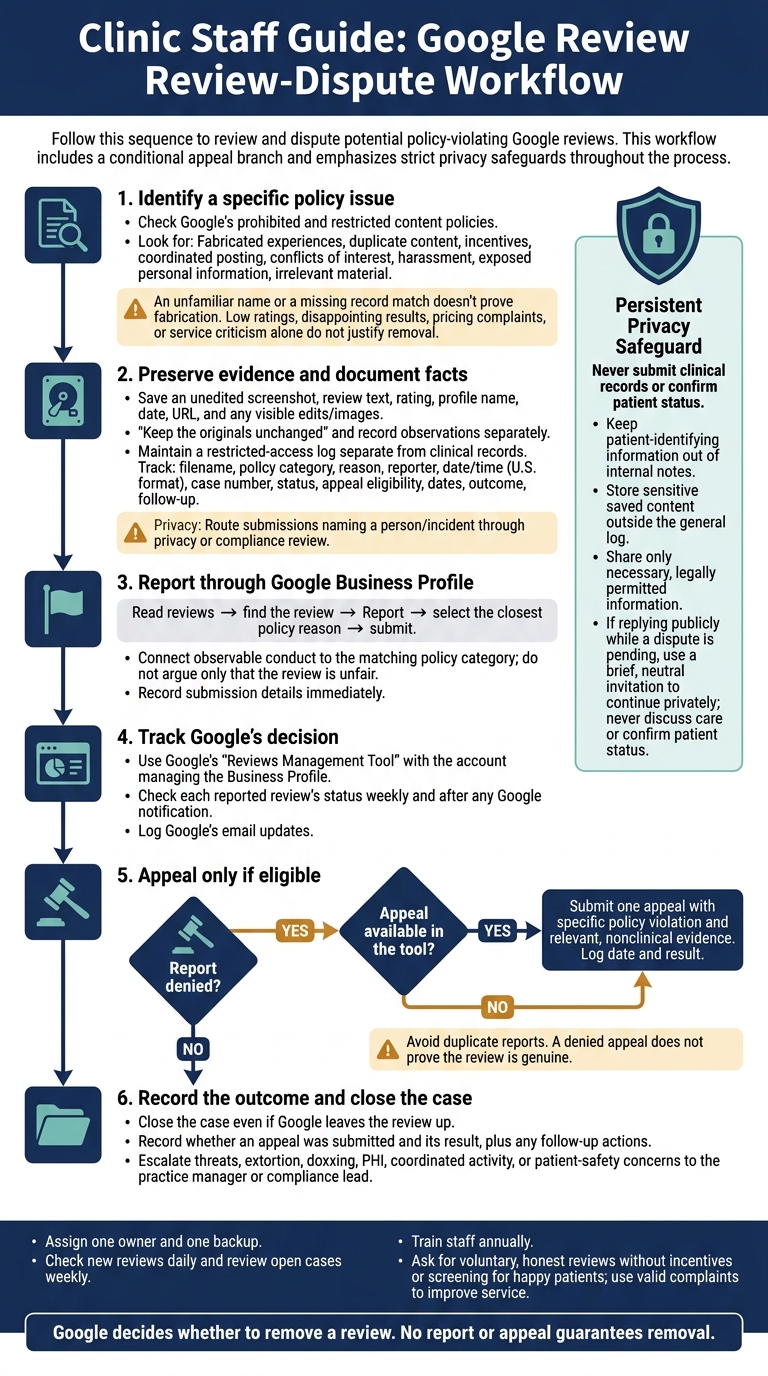
Start with Google’s prohibited and restricted content policies to identify the conduct at issue. Inauthentic engagement includes reviews that don't reflect genuine experiences, incentivized content, and coordinated review manipulation. Focus on what you can prove - not whether the review feels unfair.
Look for Specific Policy Violations
Check for fabricated experiences, duplicate content, incentives, coordinated posting, conflicts of interest, harassment, exposed personal information, or irrelevant material. Record details you can observe, such as matching text across accounts or publicly disclosed compensation. A cluster of similar reviews warrants a closer look, but it doesn't prove a violation.
An unfamiliar name or a missing record match doesn't prove fabrication, either. Reviewers may use another name or describe a genuine phone inquiry, front-desk interaction, or consultation. Record the finding as not verified by available records. If you suspect a conflict of interest, document the known relationship rather than guessing about the author's identity or motives.
Separate Policy Violations From Negative Feedback
Use this table to check whether a review has a reportable policy issue. Disagreements about results, pricing, or service aren't, on their own, evidence of manipulation.
| Policy | Potentially reportable conduct | Not automatically removable |
|---|---|---|
| Authenticity | Fabricated experiences or coordinated posting | Disappointing results or wait times |
| Incentives | Payment, discounts, or free services for posting, changing, or removing a review | Criticism of costs |
| Relevance | Unrelated promotions or content about another business | Complaints about scheduling, billing, or staff behavior |
| Conflicts of interest | Content influenced by an employment, financial, or competitive relationship | Negative feedback without evidence of a conflict |
| Harassment | Threats, targeted abuse, hate speech, or prohibited personal information | Strong criticism of communication or service |
Google decides whether to remove a review. Low ratings and unfavorable outcomes alone don't justify removal.
Once you've identified the policy ground, document the evidence and file the report.
Step 2: Document and Report the Review
Assign one primary Google Business Profile owner or manager and one backup to keep reporting consistent. Keep the dispute log separate from clinical records. Any submission naming a person or incident must go through a privacy or compliance review. Store sensitive saved content outside the general log, and share only necessary, legally permitted information - never clinical records or confirmation of patient status.
Once you identify the policy issue, preserve the evidence and report the review right away.
Save Evidence and Keep a Dispute Log
Before reporting, save an unedited screenshot, the review text, rating, profile name, date, URL, and any visible edits, images, and profile details. Keep the originals unchanged and record your observations separately.
Maintain a restricted-access log with one entry per review. Include evidence filenames, the policy category, a factual reason for the report, the reporter’s name, the submission date and time in U.S. format, and any case number. Leave space for status updates, appeal eligibility, appeal submission dates, outcomes, and follow-up actions.
Report Through Google Business Profile
Use the same evidence file when submitting the report. The authorized manager should open the clinic’s verified Google Business Profile, select Read reviews, find the review, choose Report, select the closest policy reason, and submit.
Connect the observable conduct to the matching Google policy category rather than arguing that the review is unfair or harmful. Report each separate review through the appropriate workflow. If there’s a field for supporting text, keep the explanation brief. Record the submission details immediately.
Step 3: Track the Decision and Appeal if Available
After filing the report, track Google’s decision in the Reviews Management Tool. Sign in with the Google account that manages the clinic’s Business Profile, open the tool, and select the business. Check each reported review’s status weekly and after any Google notification. Log any email updates from Google.
If Google denies the report, check whether you can appeal.
Check Appeal Eligibility and Submit Evidence
Check for a one-time appeal, and submit only reviews the tool marks as eligible. Restate the specific policy violation and attach relevant, nonclinical evidence. Do not submit clinical records or guess about patient status. Log the appeal date and result.
A denied appeal does not prove the review is genuine. Avoid duplicate reports and save the decision. Refer any separate privacy, legal, or safety concern to the appropriate clinic lead.
If the review stays visible while the dispute is pending, keep any public reply brief.
Reply Without Confirming Patient Status
While the report or appeal is pending, reply only with a neutral invitation to continue the discussion privately. Never confirm patient status or discuss care.
Conclusion: Set a Standard Review Process
Use real complaints to improve scheduling, billing, communication, and follow-up care.
Use a Review Dispute Checklist
Use the same checklist for every dispute, report, and appeal to keep the process consistent: save the review, identify the policy issue, report it, log its status, and record the outcome. Close the case even if Google leaves the review up. Note whether you submitted an appeal and its result. Keep patient-identifying information out of internal notes.
Assign one owner and one backup. Check new reviews daily and review open cases weekly. Escalate threats, extortion, doxxing, PHI, coordinated activity, or patient-safety concerns to the practice manager or compliance lead. Apply the same standard to future disputes.
Ask for Honest Reviews and Train Staff
A consistent process depends on staff following it the same way each time. Ask for voluntary, honest reviews - not just reviews from satisfied patients. Don’t discourage criticism or offer incentives for posting or removing reviews.
Train staff annually on Google’s review rules, evidence handling, and privacy limits.
FAQs
How long does Google take to review a report?
Google doesn’t guarantee how long it will take to review a report of a suspected policy violation. Review times vary, and Google makes its own decision about whether to remove the review.
While waiting for Google’s decision, clinics should keep an internal record of the review they reported.
What can we do if Google denies our appeal?
Google has the final say on review removal. Negative feedback alone isn’t grounds for removal. If Google denies your appeal, treat that decision as final. Focus on professional reputation management instead of further escalation.
Record the outcome internally. If appropriate, post a neutral, HIPAA-compliant reply inviting the reviewer to contact your office privately. Never argue publicly or confirm patient status. Doing so can create serious legal and regulatory risks.
How should we handle review-related extortion?
Don’t make public promises or threats. If a review includes explicit threats, hate speech, or inappropriate content, report it to Google as a suspected policy violation instead of engaging with the reviewer.
Avoid publicly offering refunds or billing exceptions, or making legal threats. These responses can set problematic precedents and escalate the situation.
Keep an internal record of the review and the nature of the extortion. Then consult your legal counsel or compliance team about next steps.